
Disabling SysMain, the Windows service previously known as SuperFetch, is unlikely to make most Windows 11 PCs faster. SysMain uses available RAM to preload frequently opened applications, and MS says it also prepares startup data for Fast Startup. Tests on two PCs showed almost no improvement in boot time, while cold application launches became slightly slower. Disabling the service may help only in specific situations, such as on a computer with 4GB of RAM and a slow hard drive.
SysMain frequently appears in online guides about speeding up Windows 11, often alongside recommendations to delete Prefetch data. However, removing Prefetch data does not provide a meaningful performance benefit either.
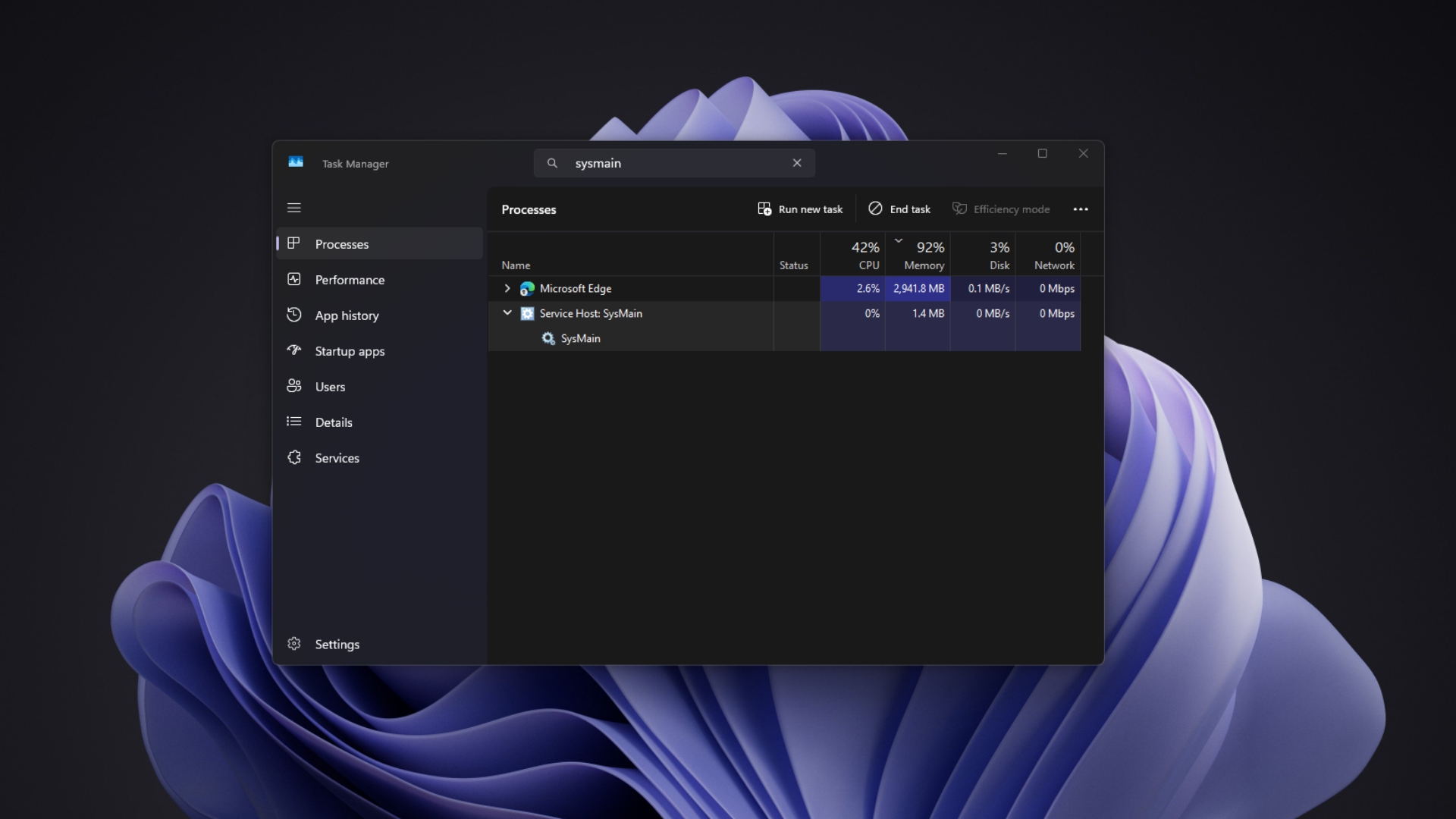
Windows 11’s SysMain Service Is Designed to Open Apps Faster
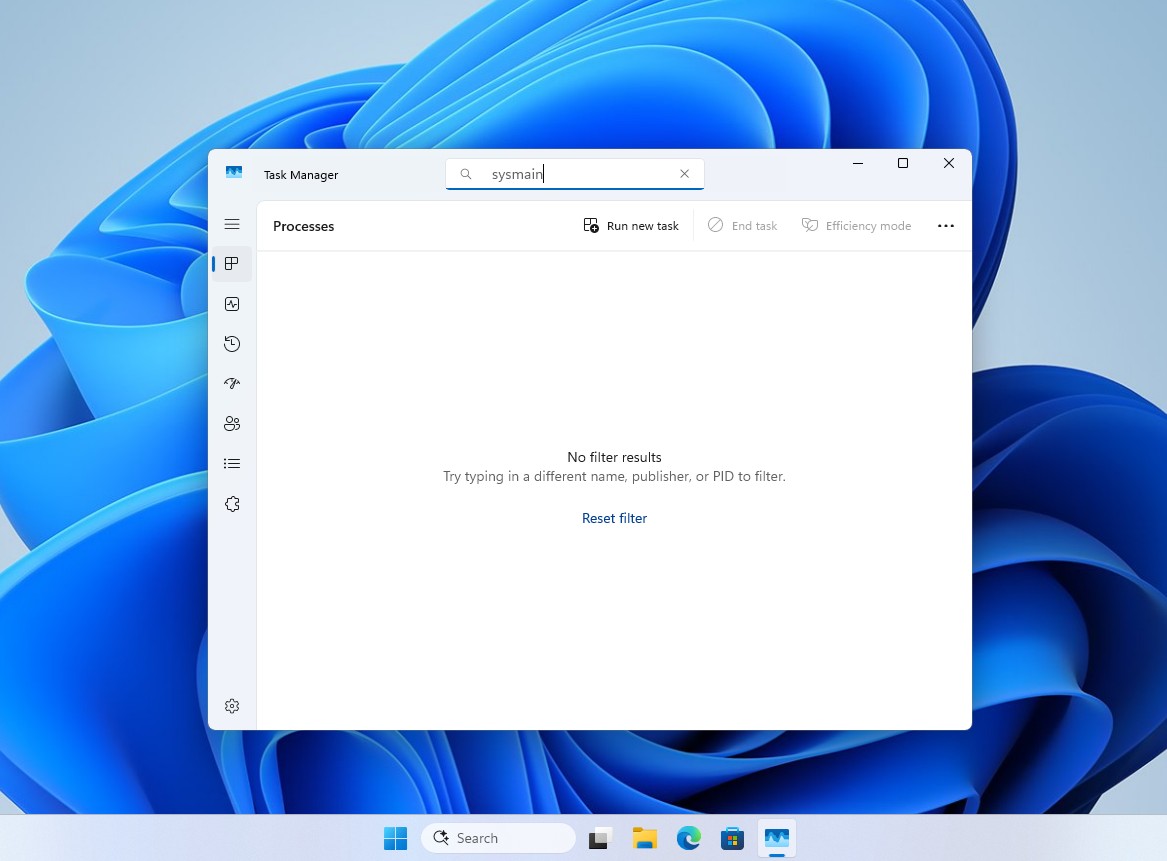
In the Services console, Windows describes SysMain as a service that “maintains and improves system performance over time.” In Task Manager, it appears as Service Host: SysMain, where users may notice it consuming CPU or disk resources shortly after startup.
SysMain learns which applications are used regularly and loads portions of them into RAM before they are opened. In 2008, Mark Russinovich, now MS Azure’s CTO, explained that when memory becomes available, SuperFetch asks Windows to restore recently removed data at only a few pages per second. It uses very-low-priority I/O operations so that preloading does not interfere with the user or active applications.
Preloaded data is placed in the Standby list, which Task Manager reports as Cached memory. Windows assigns each cached page a priority from 0 to 7 and removes pages from lower-priority lists first when an application requires memory. In practical terms, cached RAM is temporarily borrowed and remains available to applications whenever they need it.
SysMain also contributes to the startup process. MS’s hardware assessment documentation states that SuperFetch preloads data frequently accessed during startup and stores it in the hibernation file used by Fast Startup, reducing excessive disk activity when the system resumes.
SysMain and Prefetch are not the same feature. Prefetch creates small .pf files that record what an application reads when it starts, while SysMain determines which data should remain in RAM. SysMain’s database files are also stored in C:\Windows\Prefetch, a folder that maintains records of launched applications.
In a June 2023 MS Q&A discussion about SysMain, Independent Advisor John Jefferson Doyon warned that disabling the service could negatively affect system performance and recommended retaining the default configuration. The response was marked helpful by more than 40 users.
Does Disabling SysMain Make Windows 11 Faster?
SysMain was tested on two Windows 11 systems: a daily-use PC with 16GB of RAM and an underpowered virtual machine with 4GB of RAM.
On the 16GB PC, disabling SysMain produced little or no measurable difference in startup or application launch times. The virtual machine showed more noticeable changes.
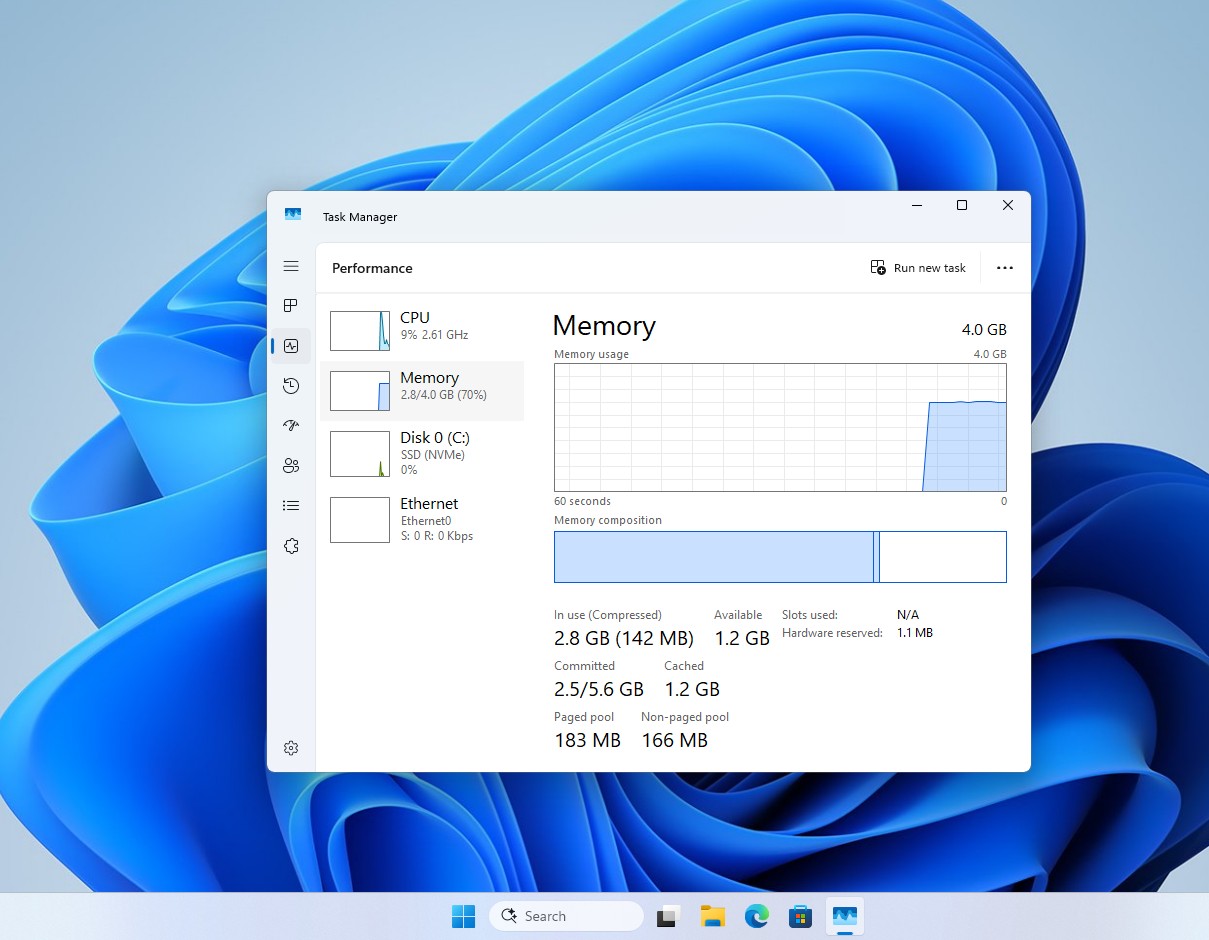
Performance Before Disabling SysMain
Restarting the PC took 42.83 seconds.
Opening Clipchamp took 3.14 seconds.
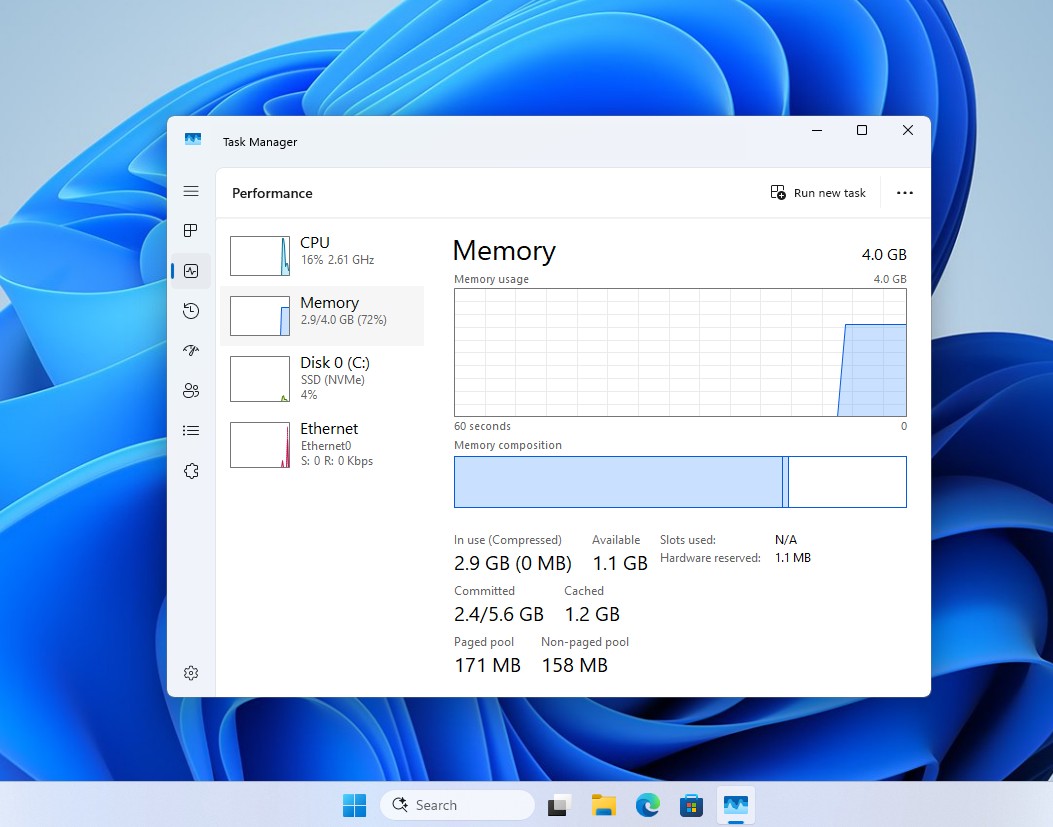
Performance After Disabling SysMain
Restarting the PC took 35.18 seconds, representing a notable improvement.
Opening Clipchamp took 8.48 seconds, making the cold launch substantially slower.
For a typical daily-use PC, there is little reason to disable SysMain unless the system is particularly old or experiencing a specific problem.
The memory results also challenge claims that SysMain consumes excessive RAM. Across repeated tests, cached memory decreased by only about 100MB after the service was disabled, which had no meaningful effect on system performance. A lower Cached value does not give applications more usable memory because Windows automatically releases cached RAM when applications request it.
MS’s position on caching is well established. In 2007, Tom’s Hardware reported that SuperFetch and ReadyBoost reduced OpenOffice Writer’s launch time from nine seconds to between two and four seconds on a Windows Vista PC with 512MB of RAM. Outlook 2007 improved from ten seconds to between two and four seconds. Those tests used a hard drive, and MS later stated in 2009 that Windows 7 disables SuperFetch on SSDs with strong random-read performance because the feature was primarily designed to improve traditional HDD performance.
Other tests have produced similar conclusions. XDA’s Ty Sherback observed little difference on a workstation equipped with a Ryzen 7 7800X3D, 64GB of RAM, and NVMe storage, although older systems with limited memory felt more responsive shortly after startup. Even so, he suggested that PCs with 8GB of RAM or less should generally keep SysMain enabled. Another XDA writer similarly acknowledged that users probably would not notice an immediate performance improvement after disabling it.
Discussions involving NVMe-based systems commonly reach the same conclusion: users often observe no performance difference whether SysMain is enabled or disabled, apart from having one fewer background service.
When Should SysMain Be Disabled?
It is normal for SysMain to use CPU or disk resources for several minutes after startup while it reloads data that Windows expects the user to need. Continuous heavy activity lasting for hours, however, may indicate a problem.
One participant in the MS Q&A discussion reported that SysMain consumed 96% of the CPU on a small HP all-in-one PC, believed to have 4GB of RAM, immediately after a Windows update. On a system with limited memory and an older drive, temporarily stopping SysMain may be reasonable until the RAM can be upgraded.
MS has also documented a specific Windows 7 issue under KB2723033. In that case, SysMain repeatedly caused CPU usage to spike for one or two minutes when a 64-bit application was compiled with a particular flag. Although this is an old and highly specific bug, it demonstrates that abnormal SysMain behavior usually points to a fault rather than proving that the service itself is unnecessary.
How to Evaluate a Suspected SysMain Problem
Open Task Manager and verify that Service Host: SysMain is the process consuming resources.
Check whether the excessive activity continues beyond the first ten minutes after startup.
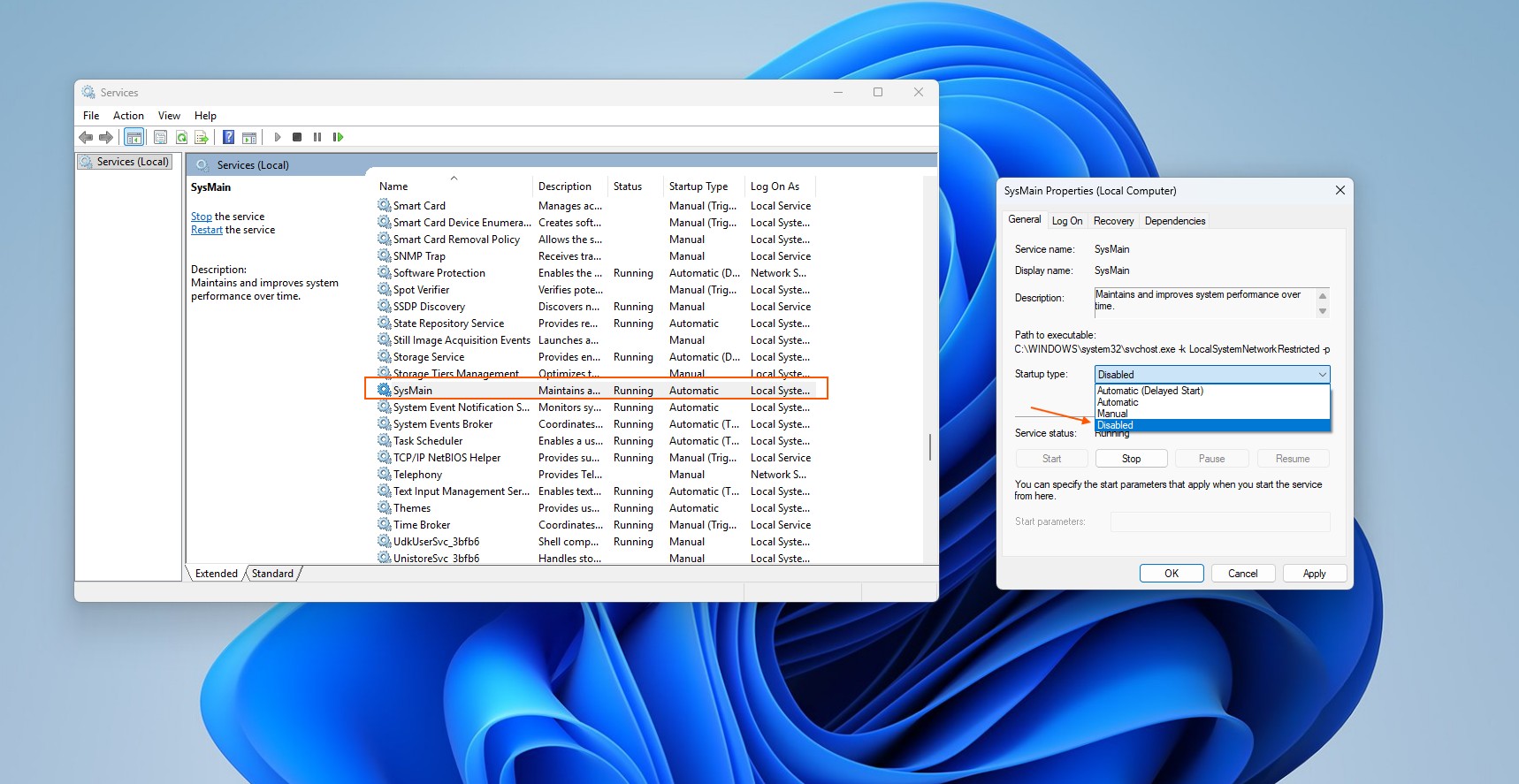
Stop SysMain through the Services console without changing its Startup type.
Use the PC normally for a day and determine whether performance improves.
If there is no improvement, restart the service.
Set SysMain to Disabled only if the problem disappears when the service is stopped and returns when it is enabled again.
How to Disable SysMain on a Windows 11 PC
Having an SSD is not, by itself, a reason to disable SysMain. A high RAM figure in Task Manager is not sufficient justification either. MS continues to pursue faster application launches in Windows 11 through other methods, including bypassing an additional process for applications that are already running, while SysMain has long served the broader goal of improving launch performance.
Like the page file, SysMain is a Windows memory-management feature that may appear wasteful in Task Manager but is intended to improve performance. If a Windows 11 PC is operating normally, the service should generally remain enabled.